
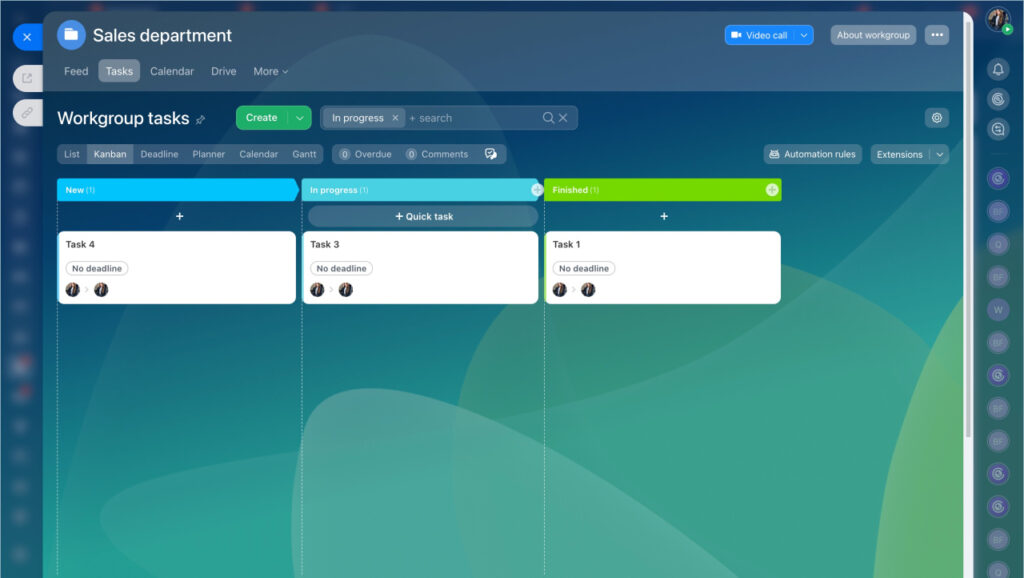
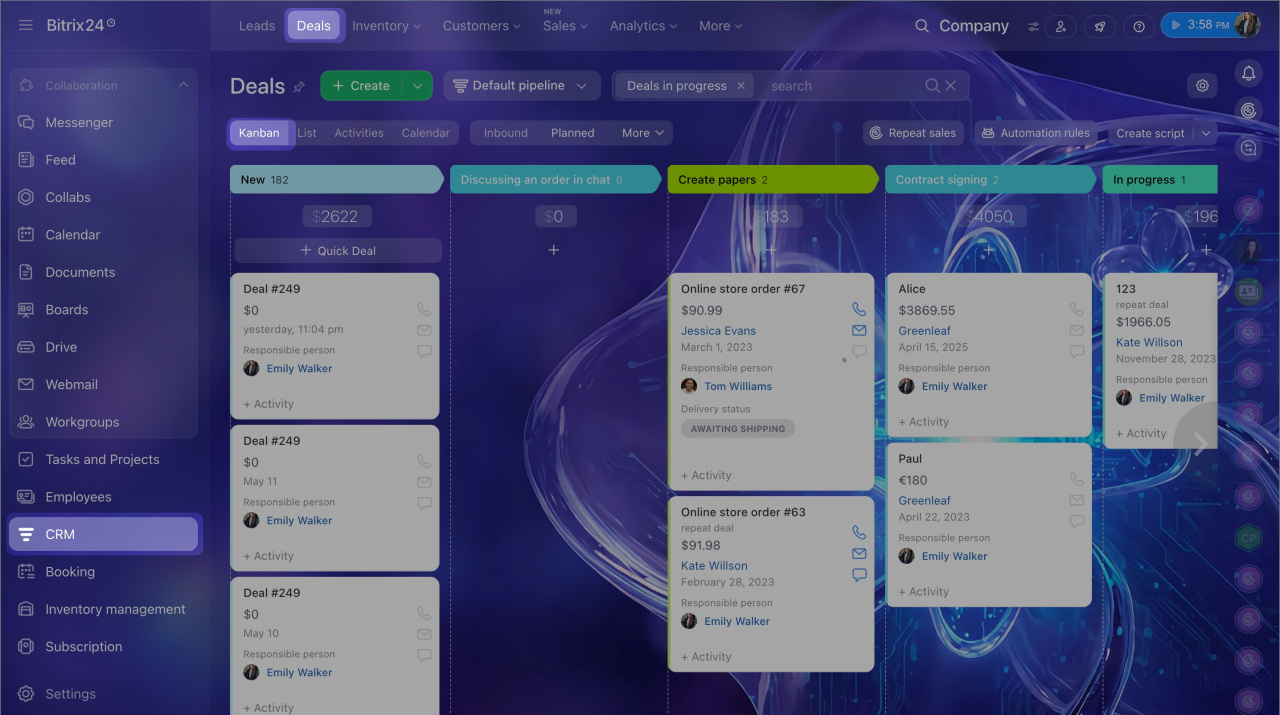
If you are looking for a simple way to manage your team’s work, the Bitrix24 Kanban board is one of the best tools you can use. It helps you see all your tasks in one place, move them from one stage to another, and track progress without any confusion.
In this guide, we will explain everything about the Bitrix24 Kanban board — what it is, how to use it, its features, benefits, and much more. Whether you are new to Bitrix24 or already using it, this post will help you get the most out of it.
1. What is a Kanban Board?
A Kanban board is a visual tool used to manage tasks and projects. The word “Kanban” comes from Japanese, meaning “visual signal” or “card.” It was first created by Toyota in the 1940s to improve factory production.
Today, Kanban boards are used by teams all over the world to manage software projects, sales pipelines, marketing campaigns, and much more.
A typical Kanban board has:
- Columns – Each column shows a stage of work (e.g., To Do, In Progress, Done)
- Cards – Each card is a task. You move cards from one column to another as work progresses
- Labels & Colors – Used to mark priority, category, or team member
| Pro Tip: Kanban boards are great for teams that want to see the “big picture” of their work without reading long reports. |
2. What is Bitrix24?
Bitrix24 is a popular all-in-one business software. It brings together tools like CRM, task management, communication, project tracking, and HR management into one platform.
It is used by over 15 million organizations worldwide. Bitrix24 offers both a free plan and paid plans, making it accessible to small businesses, startups, and large enterprises.
Some of the main tools in Bitrix24 include:
- CRM (Customer Relationship Management)
- Task & Project Management (including Kanban Board)
- Team Chat & Video Calls
- File Storage & Document Management
- HR & Employee Management
- Automation & Workflows
3. Bitrix24 Kanban Board – Overview
The Bitrix24 Kanban board is a built-in feature inside the Tasks & Projects section. It gives your team a visual way to track all tasks in a project.
Each task appears as a card. These cards are placed in columns that show the current stage of the task. You can move cards between columns by simply dragging and dropping them.
Bitrix24’s Kanban board is available in:
- Tasks & Projects – To manage work items for your team
- CRM – To track leads, deals, invoices, and estimates through your sales pipeline
- RPA (Robotic Process Automation) – To manage automated workflows
- e-Signature – To track the document signing process
| Key Fact: Bitrix24 Kanban board supports both personal task management and team project tracking. Each team member can customize their own Kanban view. |
4. Key Features of Bitrix24 Kanban Board
4.1 Drag-and-Drop Cards
Moving tasks is very easy. Just drag a card from one column and drop it into another column. This updates the task status automatically. No extra clicks needed.
4.2 Customizable Columns (Stages)
You can create your own columns to match your workflow. For example:
- New → In Review → In Progress → Testing → Done
- Lead → Contact Made → Proposal Sent → Negotiation → Closed
Each column can be given a custom name and a color. You can also reorder columns by dragging them.
4.3 Color-Coded Cards
You can assign colors to cards to show priority levels. For example, red cards can mean high priority, while green cards mean low priority. This makes it easy for the whole team to understand what needs urgent attention.
4.4 Quick Task Creation
You can add a new task with one click directly from the Kanban board. Just click “Quick Task” below any column, type the task name, and it gets added instantly.
4.5 Task Details Inside Each Card
Every card on the Kanban board can hold detailed information:
- Task name and description
- Assigned team member
- Deadline and due date
- Checklist of subtasks
- Attached files and documents
- Comments from team members
- Time tracking data
4.6 Filters and Search
You can filter cards by project, team member, deadline, status, and more. This helps you find the specific task you need in seconds — even when your board has hundreds of tasks.
4.7 Task Dependencies
You can set up task dependencies, meaning one task cannot start until another task is finished. This keeps your workflow in the right order.
4.8 Time Tracking
Bitrix24 allows you to track how much time is spent on each task. This is useful for billing clients, monitoring team productivity, and planning future projects.
4.9 Collaboration Features
Team members can:
- Leave comments on task cards
- Tag other users using @mentions
- Attach files directly to tasks
- Share real-time updates on any card
4.10 Deadline Mode
The Deadline Mode in Bitrix24 shows your tasks sorted by due date on the Kanban board. The most urgent tasks appear at the top, helping you prioritize your day.
4.11 AI-Powered Features (CoPilot)
Bitrix24 now includes an AI assistant called CoPilot. It can automatically generate task descriptions, summarize task progress, and create checklists — saving you time every day.
5. How to Use Bitrix24 Kanban Board – Step by Step
Here is a simple step-by-step guide to get started with the Bitrix24 Kanban board:
Step 1: Open Tasks & Projects
Log in to your Bitrix24 account. From the left menu, click on “Tasks and Projects”. Then click on the “Projects” tab and select any project.
Step 2: Switch to Kanban View
At the top of the page, you will see different view options: List, Kanban, Gantt, Scrum, and Calendar. Click on “Kanban” to switch to the board view.
Step 3: Set Up Your Columns
By default, you will see three stages. To edit a column name, hover over it and click the pencil icon. To add a new column, click the “+” button on the right side.
Step 4: Add Tasks to the Board
Click “Quick Task” under any column. Type the task name and press Enter. The task card will appear on the board instantly.
Step 5: Fill In Task Details
Click on any task card to open it. You can add a description, assign a team member, set a deadline, attach files, and write comments.
Step 6: Move Tasks Between Stages
As work progresses, drag and drop the task card from one column to the next. This updates the task status for the whole team automatically.
Step 7: Use Filters to Stay Organized
Click the Filters button at the top of the board. Filter by team member, deadline, or task status to focus on what matters most.
6. Bitrix24 Kanban Board for CRM
The Kanban board is also very powerful in Bitrix24’s CRM section. Sales teams use it to track leads and deals through their pipeline.
In CRM Kanban view, you can manage:
- Leads – Potential customers who have shown interest
- Deals – Active sales opportunities with set values
- Invoices – Payment records and billing status
- Estimates – Quotes sent to customers
Each card shows the deal name, value, assigned manager, and current stage. You can move deals forward in the pipeline with a simple drag-and-drop action.
| Example: A deal starts at “New Deal” and moves through stages: Contacted → Demo Scheduled → Proposal Sent → Negotiation → Won (or Lost). This gives your sales team a clear visual of where every deal stands at any moment. |
You can also configure the Kanban creation form to only show the most important fields (like Name, Customer, Amount), making deal entry faster for your sales reps.
7. Bitrix24 Kanban Board vs Other Tools
| Feature | Bitrix24 Kanban Board |
| Free Plan Available | Yes (unlimited users) |
| CRM Integration | Yes – built-in |
| AI Features (CoPilot) | Yes |
| Time Tracking | Yes |
| Task Dependencies | Yes |
| Automation Rules | Yes |
| Mobile App | Yes (iOS & Android) |
| Document e-Signature Kanban | Yes |
| Custom Workflows (RPA) | Yes |
| Guest/External Users | Yes |
8. Benefits of Using Bitrix24 Kanban Board
Here are the top reasons why teams love using the Bitrix24 Kanban board:
Better Visibility
Everyone on the team can see what tasks are in progress, what is done, and what is waiting. No more confusion about who is doing what.
Saves Time
Quick task creation, drag-and-drop movement, and automated workflows reduce the time spent on manual updates. Managers can assign weekly or monthly recurring tasks once and let automation handle the rest.
Improves Team Collaboration
Team members can comment, attach files, and tag each other directly on task cards. This keeps all communication in one place — no need for separate email threads.
Helps You Meet Deadlines
Deadline Mode and task sorting by urgency help your team focus on what needs to be done first. Color-coded priority labels make it even clearer.
Works for Any Team
Whether you are in sales, marketing, IT, HR, or operations — the Kanban board can be customized to fit your specific workflow.
All-in-One Platform
Since Bitrix24 combines CRM, tasks, chat, and file storage in one place, your team doesn’t need to switch between multiple apps. Everything is connected.
9. Tips to Get the Best Results
- Keep your column names clear and simple (e.g., “To Do”, “In Progress”, “Review”, “Done”)
- Assign every task to a specific person so there is no confusion about responsibility
- Use color labels to mark priority — red for urgent, yellow for medium, green for low
- Set realistic deadlines for every task to keep your team on track
- Review your Kanban board in team meetings to discuss blockers and progress
- Use automation rules to move tasks automatically when certain conditions are met
- Limit the number of tasks in the “In Progress” column to avoid overload
- Archive or delete completed projects to keep your board clean
10. Conclusion
The Bitrix24 Kanban board is a powerful, flexible, and easy-to-use tool for any team. It helps you visualize your work, track progress in real time, and collaborate with your teammates — all in one place.
Whether you are managing a sales pipeline, a software project, or an HR process, Bitrix24’s Kanban board can be customized to fit your exact needs.
The best part? Bitrix24 is free to start. You can sign up with unlimited users and start using the Kanban board today without spending a single rupee.
| Ready to Try? Visit bitrix24.com and sign up for free. Once you are in, go to Tasks & Projects > Kanban to start organizing your team’s work visually. |
Frequently Asked Questions (FAQs)
Q1. Is the Bitrix24 Kanban board free?
Yes! Bitrix24 offers a free plan that includes the Kanban board feature with unlimited users. Paid plans offer more advanced features like extra storage, CRM automation, and priority support.
Q2. Can I use the Kanban board on mobile?
Yes. Bitrix24 has mobile apps for both iOS and Android. You can view, create, and manage Kanban tasks from your smartphone.
Q3. How is Bitrix24 Kanban different from Trello?
Bitrix24 includes Kanban as part of a much bigger platform — it comes with CRM, chat, HR, automation, and more. Trello is a standalone Kanban tool. If you need more than just task boards, Bitrix24 is the better choice.
Q4. Can I customize the Kanban columns in Bitrix24?
Yes. You can add, rename, reorder, and color-code columns to match your exact workflow. Each user can also set their own personal Kanban stages.
Q5. Does Bitrix24 Kanban support automation?
Yes. You can set up automation rules to automatically move tasks between stages, send notifications, assign tasks, or create follow-up actions when certain triggers occur.